FAQ
Short answers to common questions. For how alerts work — touch and candle-close alerts, timeframes, Ask and Bid — see How to Use.
General
What is fx-alert?
A live forex chart where you draw lines and get notified when price reaches them or a candle closes beyond them. Alerts are delivered by Telegram or browser notification.
Is it free?
Yes. There is no trial period and no subscription. Charts, alert types and notification channels are all free. You can keep 3 active alerts at a time. You can raise this to 20, also at no cost to you.
Do I have to keep the chart open?
No. Alerts are checked on our servers, not in your browser. You can close the tab, turn off your computer, or put your phone away — the alert still fires. You only need a device that can receive the notification.
Do I need an account?
No. You can use the chart and keep 3 active alerts without signing in. Your alerts are then tied to this one browser.
Signing in with Telegram takes a few seconds and gives you:
- the same alerts, lines and channels on every device where you sign in;
- browser notifications on several devices at once;
- your alerts kept safe if you clear your browser data.
Which symbols are available?
Major and cross currency pairs, two exotic pairs (USDMXN, USDZAR), gold and silver (XAUUSD, XAGUSD), and Bitcoin and Ethereum (BTCUSD, ETHUSD).
Is fx-alert trading advice?
No. fx-alert only tells you when price does what you asked for. It does not give signals, recommendations or advice, and it does not place trades. Every trading decision is yours.
Alerts
How many alerts can I have?
3 active alerts at a time. When an alert fires, expires or is deleted, its slot frees up.
How do I get 20 alerts?
Open a trading account with our partner broker through the link on our Partner broker page, and sign in to fx-alert with Telegram. Once your account is verified, your limit goes up to 20 active alerts. All alert types stay the same — only the number of active alerts changes.
The partner broker is not available in every country. If it isn't available in yours, the Partner broker page will tell you.
My alert didn't fire. Why?
Check these in order:
- Did it fire, but the message didn't reach you? Open the alert list and look at the History tab. If the alert is there, it fired — the ✓ and ✗ marks show which channels delivered it. See Notifications.
- Touch alert, price already past the line? A touch alert fires when price crosses the line. If price was already on the alert side when you created it, the alert waits for price to come back and cross again. See How to Use — Two types of alert.
- Candle-close alert? It fires only when a candle closes, and only on the timeframe you chose in Set Alert. A wick through the line is not enough if the condition asks for the close. See How to Use — Timeframe.
- Ask or Bid? The spread matters. Price may reach your line on the Bid but not on the Ask, or the other way round. See How to Use — Ask or Bid.
- Different price from your broker? Our chart price can differ slightly from your broker's. See How to Use — Our prices vs. your broker.
- Expired? An alert that doesn't fire within 30 days expires. It then appears in History as expired.
Do alerts work at weekends?
Currency and metal markets close at weekends, so those alerts can't fire until the market reopens. Your alerts stay active, and the 30-day lifetime keeps running.
Notifications
Which channel should I use?
Telegram. It is the most reliable channel on phones, tablets and computers. Browser notifications are a good second channel, but how reliably they arrive depends on the device and its settings. For important alerts, tick both.
How do I know my notifications work?
Use the Test button in the Set Alert window. It sends a test message to every channel you have ticked. Do this once on every device you want alerts on — and again after you change device settings.
If the test doesn't arrive, follow the steps for your device below: Windows · Android · iPhone and iPad.
An alert fired (✓ in History), but I didn't see a notification
✓ means the message left our server and was accepted. What happens next is up to your device: notification settings, battery saving, do-not-disturb modes. The steps for your device below fix almost every case.
What does "needs reconnect" mean?
A channel turns red when messages to it keep failing — for example, you blocked the Telegram bot, or removed notification permission in your browser. Open the 🔔 channels window and press Reconnect. Until then, alerts can't be delivered to that channel.
I want browser notifications on several devices
- Sign in with the same Telegram account on each device.
- On each device, open the 🔔 channels window and press Enable on this device.
All devices then appear under Web notifications, and every alert goes to all of them. You can add up to 5 devices. To stop notifications on one device, press Remove next to it.
Windows computer
Browser notifications on Windows need three things to be on: Windows notifications for Chrome, notifications for our site in Chrome, and Chrome itself running.
Step 1. Windows notifications for Chrome
Open Settings → System → Notifications & actions (Windows 11: Settings → System → Notifications). Make sure notifications are on, and that Google Chrome is On.
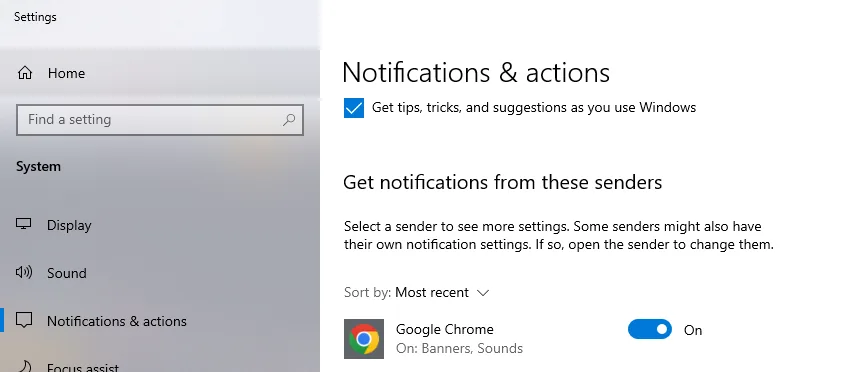
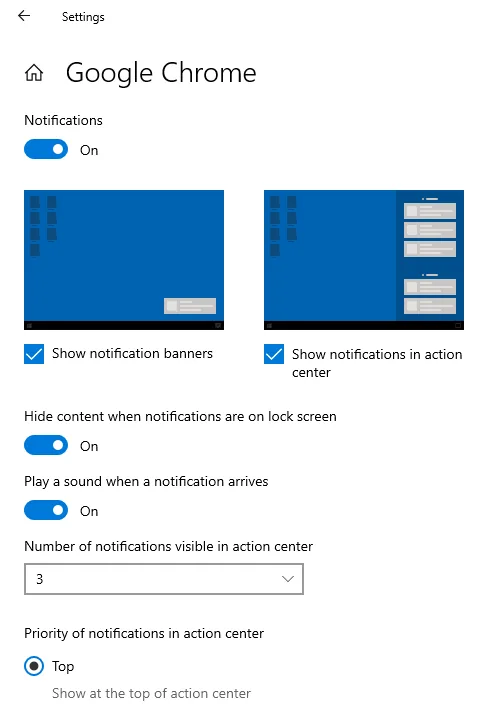
Click Google Chrome and check:
- Show notification banners — ticked. Without this, notifications arrive silently.
- Show notifications in action center — ticked, so you can see alerts you missed.
- Play a sound when a notification arrives — On.
Step 2. Focus assist / Do not disturb
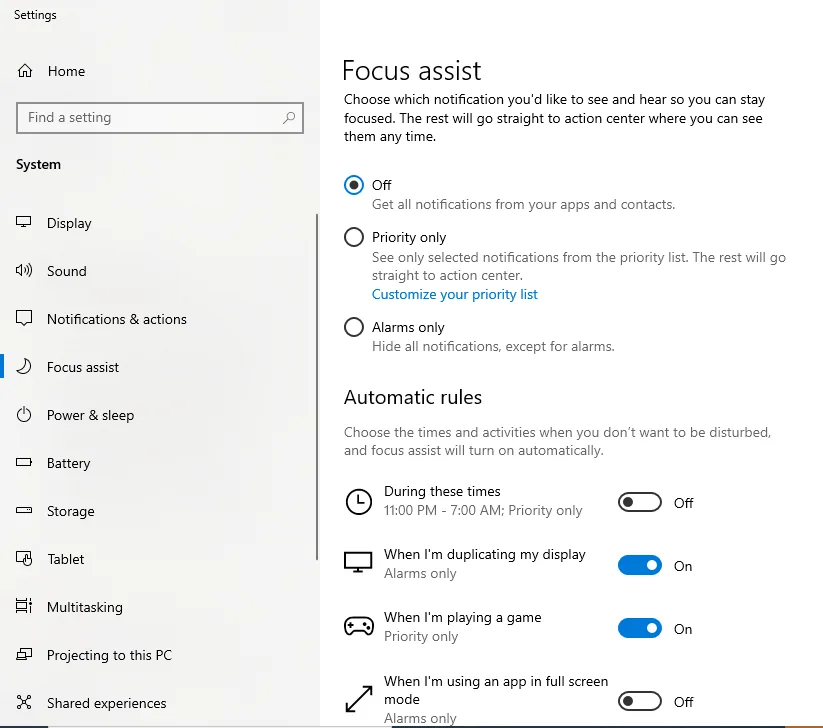
Windows can hide notifications automatically — for example while an app is in full screen mode. If you watch the chart in full screen, this alone can hide every alert.
Open Settings → System → Focus assist (Windows 11: Settings → System → Notifications → Do not disturb):
- Set Focus assist (Do not disturb) to Off.
- Under Automatic rules (Windows 11: Turn on do not disturb automatically), turn off When I'm using an app in full screen mode. Check the other rules too.
Step 3. Notifications for our site in Chrome
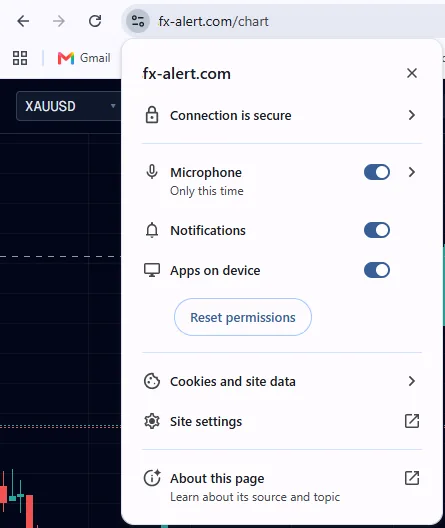
On the chart, click the icon to the left of the address bar and make sure Notifications is on.
Step 4. Keep Chrome running
Browser notifications arrive only while Chrome is running. If you close Chrome completely, alerts reach you when you open it again. To receive them with Chrome closed, open Chrome Settings → System and turn on Continue running background apps when Google Chrome is closed. Or use Telegram, which doesn't depend on the browser.
Telegram Desktop
Telegram Desktop shows notifications only while it is running. Set it to start with Windows and stay in the background:
Open ☰ → Settings → Advanced, and under System integration tick:
- Show tray icon
- Launch Telegram when system starts
- Launch minimized
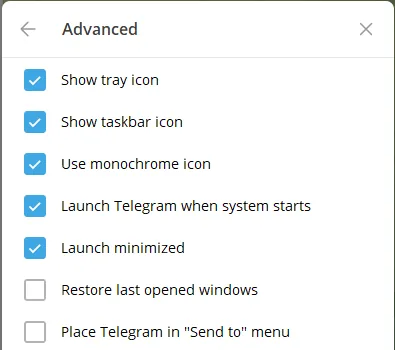
Then open ☰ → Settings → Notifications and Sounds:
- Desktop notifications and Allow sound — On.
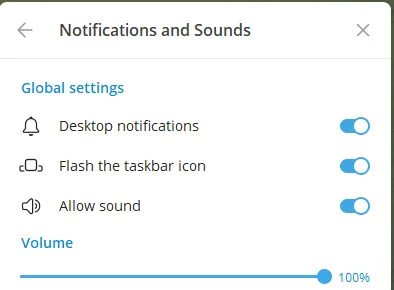
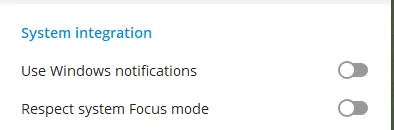
Further down, under System integration, turn Respect system Focus mode Off, so alerts still show while Windows Focus assist is on. With Use Windows notifications Off, Telegram shows its own pop-ups and doesn't depend on Windows notification settings.
Android phone
Menu names differ a little between phone makers. The screenshots are from a Samsung phone.
Browser notifications arrive late or not at all
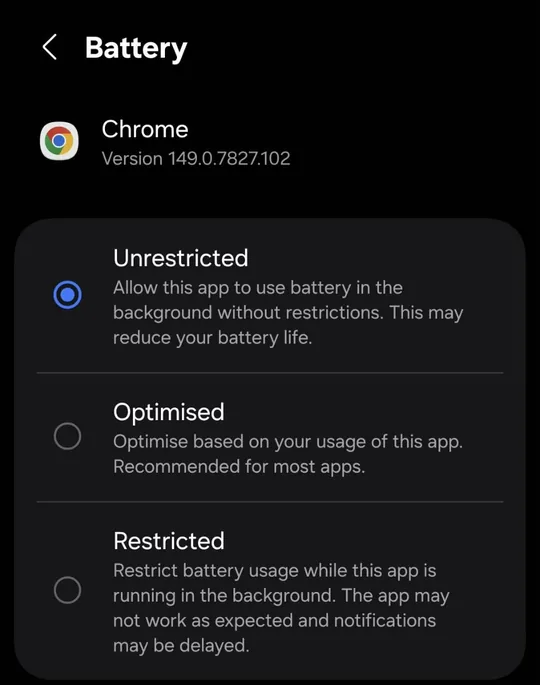
Android saves battery by putting apps to sleep, which can hold back notifications while the screen is off. Two settings fix this.
1. Let Chrome run in the background. Press and hold the Chrome icon → App info → Battery → Unrestricted.
2. Make our notifications alert you. In Chrome, open the chart, tap the icon to the left of the address, then Permissions → Notifications.

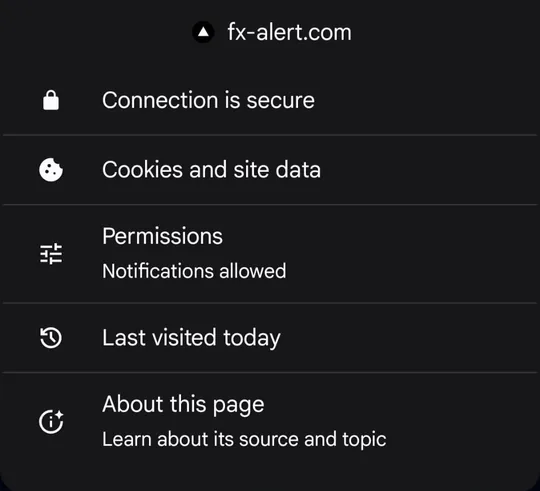
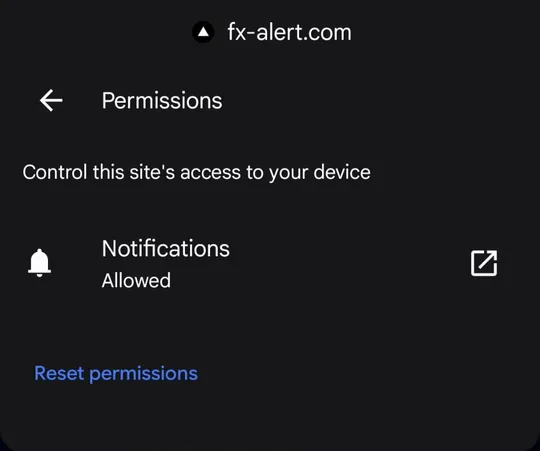
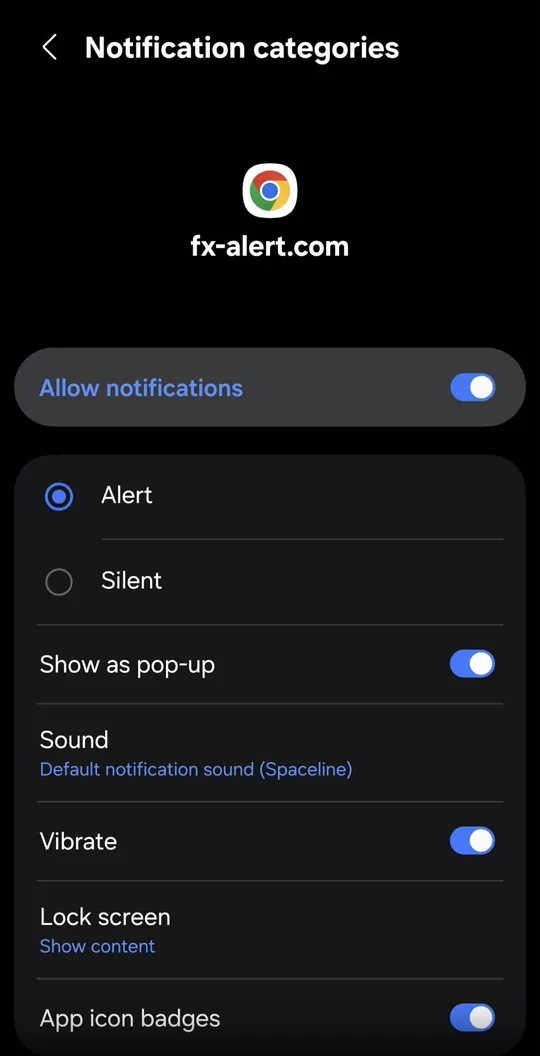
Tap the ↗ icon next to Notifications. On this screen:
- Allow notifications — On
- Alert selected (not Silent)
- Show as pop-up — On
- Sound — pick a sound you will recognise as an alert
Telegram: a separate sound for alerts
Give our bot its own sound so you can tell an alert from a normal message. Open the chat with the bot, tap ⋮ → Mute → Customize.
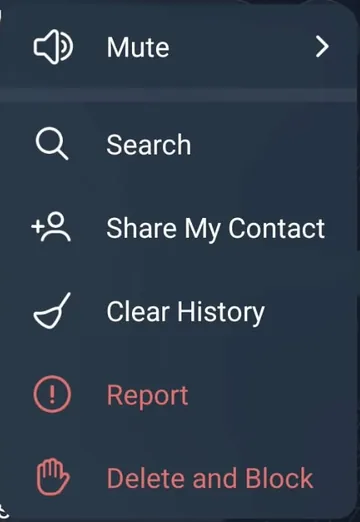
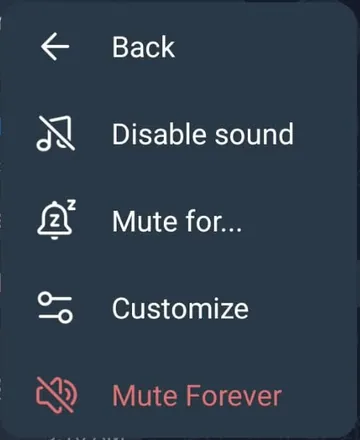
Then set:
- Sound — a sound of your choice
- Priority — Urgent, so alerts come through even in Do Not Disturb mode
- Popup notifications — Enabled
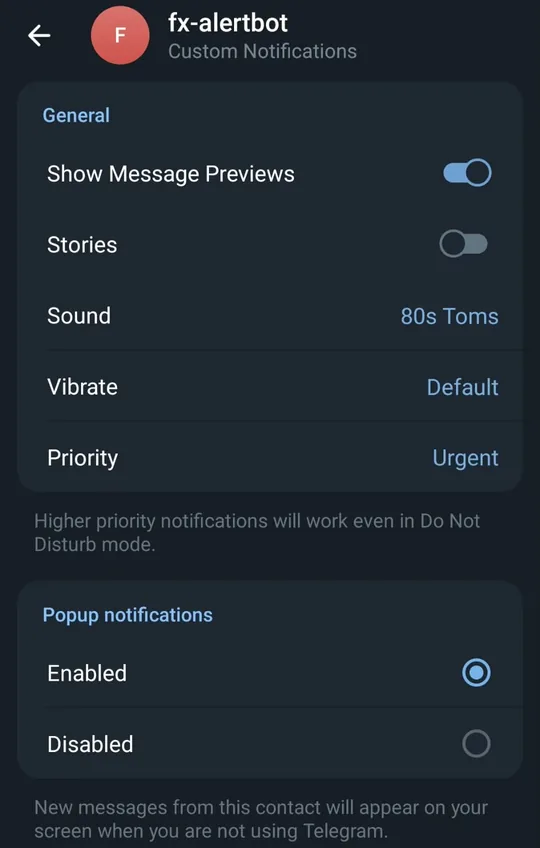
Never mute the bot — muted chats don't make a sound.
iPhone and iPad
Browser notifications
On iPhone and iPad, browser notifications work only when fx-alert is added to the Home Screen (iOS 16.4 or later):
- Open
fx-alert.com/chartin Safari. - Tap Share → Add to Home Screen.
- Open fx-alert from the new Home Screen icon — not from Safari.
- Sign in with Telegram there, open the 🔔 channels window and press Enable on this device.
The Home Screen app keeps its own data, separate from Safari, so sign in again inside it.
Telegram
Telegram works on iPhone without any extra steps and is the more reliable choice. To give the bot its own sound, open the chat with the bot, tap its name at the top → Notifications → Sound.
Account and privacy
What do you store about me?
Only what the service needs to work: your lines and alerts, your notification channels, and, if you sign in, your Telegram ID and @username — not your name or phone number. We don't use analytics or tracking scripts. Details: Privacy.
How long do you keep it?
Fired and expired alerts are deleted after 30 days. Channels and accounts that haven't been used for 90 days are deleted automatically. See Privacy for the full list.
How do I delete my data?
- Alerts: delete them in the alert list.
- Lines: delete them on the chart.
- Channels: press Remove in the 🔔 channels window.
What is left — your sign-in record — is deleted automatically after 90 days without use.
How do I contact you?
Questions, bug reports and feedback all go through the Contact page, which also lists what to include so we can help quickly.